





Intel’s Wi-Fi explainer says 2.4 GHz can deliver a typical over-the-air max speed of up to 100 Mbps, while 5 GHz can deliver up to 1 Gbps. The 5GHz vs 2.4GHz trade-off runs the other way on reach: Google’s Nest support pages note that 2.4 GHz signals travel farther, so they cover a larger area, and they can travel through solid objects more easily. Neither band wins outright, so the useful question is which of your devices belongs on which band.
The sections set out speed, range and channel counts from Intel, Cisco Meraki and NETGEAR, plus Apple and NSA network-name advice. Next come the 2.4 GHz support notes Google and TP-Link publish for smart home devices. They also place the 6 GHz band, which the Federal Communications Commission opened for unlicensed use on April 23, 2020, next to the older bands.
Key Takeaways
- Intel lists up to 100 Mbps typical on 2.4 GHz and up to 1 Gbps on 5 GHz, a gap that widens with up to 2 Gbps on 6 GHz.
- According to Cisco Meraki, in the United States, channels 1 through 11 are permitted on 2.4 GHz, which provides three non-overlapping channels: 1, 6, and 11.
- The 802.11 standard defines 23 20 MHz channels in the 5 GHz spectrum, and 15 of them sit in UNII-2, shared with radar and requiring DFS.
- According to Apple, routers should use the same name for every band, because different 2.4 GHz, 5 GHz, or 6 GHz names mean devices might not connect reliably, a rule that applies to all 3 bands.
- According to the FCC, the agency made 1,200 megahertz in the 6 GHz band available for unlicensed use on April 23, 2020.
- Cisco’s deployment guide states that WPA2 is not permitted in 6 GHz operation, where WPA3 is mandatory for all Wi-Fi 6E devices operating in the 6 GHz band.
Editor’s Choice
- Best for range: 2.4 GHz, per Intel, which says 2.4 GHz has the longest range and wall-penetration capability, at up to 100 Mbps.
- Faster of the two main bands: 5 GHz, rated by Intel at up to 1 Gbps.
- Most room for wide channels: 6 GHz, which supports up to seven even larger 160 MHz channels.
- Smart plugs: 2.4 GHz, since Tapo smart plugs support 2.4 GHz Wi-Fi per TP-Link.
- Network names: one name across all bands, the Apple setting that keeps your 2.4 GHz, 5 GHz, or 6 GHz bands together.
- Security on 6 GHz: WPA3 only, and Cisco adds that Protected Management Frames (PMF) is mandatory in 6 GHz alongside WPA3.
2.4 GHz vs 5 GHz Wi-Fi Compared: Range, Speed and Channels
Intel says 2.4 GHz has the longest range and wall-penetration capability of the available bands. On the other side, the 5 GHz Wi-Fi spectrum is approximately 500 MHz wide, and devices can use up to six larger 80 MHz channels for faster speeds. For your home network, the 2.4 GHz vs 5 GHz choice is reach against throughput.
The two bands break down this way in Intel’s and NETGEAR’s own documents:
- Range: The 2.4 GHz band offers the most coverage, making it ideal for reaching far corners of your home, says NETGEAR.
- Channels: The 2.4 GHz Wi-Fi spectrum is 70 MHz wide, and devices are typically limited to three 20 MHz channels.
- Interference: NETGEAR calls 2.4 GHz more prone to interference from devices like microwaves and garage door openers.
- Speed: Intel rates 5 GHz at up to 1 Gbps, above the 2.4 GHz typical maximum by a factor of 10.
- Crowding: NETGEAR describes 5 GHz as less crowded, with 23 available channels and less interference from other devices.
Slower on paper does not always mean slower in the house. Google’s tip for Nest owners is that a 2.4 GHz network connection won’t necessarily be slower than a 5 GHz connection, because the longer reach can matter more than the higher ceiling in a far room.
| Attribute | 2.4 GHz | 5 GHz |
|---|---|---|
| Spectrum width | 70 MHz | Approximately 500 MHz |
| Channels devices use | Typically three 20 MHz channels | Up to six 80 MHz channels, two always available |
| Typical over-the-air max speed | Up to 100 Mbps | Up to 1 Gbps |
| Coverage | Most coverage, longest range and wall penetration | Mid-range coverage |
| Interference | More prone to interference from microwaves and garage door openers | Less crowded, 23 available channels |
| Best for | Small amounts of data over longer distances | Gaming, home theater and home office calls |
Source: Intel, NETGEAR
Each band’s strengths and limits, drawn from the same maker documents:
2.4 GHz Pros
- Longest range and wall-penetration capability of the available bands.
- Ideal for sending small amounts of data over longer distances.
- The only band for 1st and 2nd gen Nest Learning Thermostats, 1st and 2nd gen Nest Protects, and Nest Connect.
2.4 GHz Cons
- Typical max speed of up to 100 Mbps.
- Only three non-overlapping channels: 1, 6, and 11 in the United States.
- Most legacy devices still use this frequency, generating a lot of network clutter.
5 GHz Pros
- Typical max speed of up to 1 Gbps.
- Less crowded with 23 available channels.
- Recommended for gaming, home theater, and home office applications that depend on voice and video calls.
5 GHz Cons
- Provides mid-range coverage rather than the reach of 2.4 GHz.
- Only two of the six channels are always readily available, as four channels may be restricted from use at times due to weather or airport radar.
- Some smart home gear never joins it. Google lists Nest Connect among the products that “only work with 2.4 GHz Wi-Fi.”
The channel row in that table is where makers stop agreeing with each other.
Non-Overlapping 2.4 GHz Channels vs 5 GHz Channels
Cisco Meraki says the 802.11 standard defines fourteen 20 MHz-wide channels in the 2.4 GHz industrial, scientific, and medical band. It adds that in the United States, channels 1 through 11 are permitted, which provides three non-overlapping channels: 1, 6, and 11. That gap explains most of the confusion about 2.4 GHz non-overlapping channels.
- NETGEAR’s explainer says the 2.4 GHz band has only 11 channels, leading to potential network overcrowding.
- Intel says devices are typically limited to three 20 MHz channels.
- Both figures fit Meraki’s plan, since channels 1 through 11 are permitted but only three non-overlapping channels 1, 6 and 11 stay clear of each other.
A router box’s channel list is a menu; the usable lanes are fewer.
View the data
The 5 GHz picture is the opposite problem: plenty of channels, but not all of them are free to use at any moment. In the Meraki plan, UNII-1 containing channels 36, 40, 44, and 48 and UNII-3 containing channels 149, 153, 157, 161 are permitted, while UNII-2 is permitted in the United States, but shared with radar systems. That leaves 8 channels that need no radar check.
View the data
Meraki adds that APs operating on UNII-2 channels are required to use Dynamic Frequency Selection (DFS) to avoid interfering with radar signals, and if an AP detects a radar signal, it must immediately stop using that channel and randomly pick a new channel. Intel’s version of the same limit is that only two of the six channels are always readily available at 80 MHz width.
By the numbers: Cisco Meraki counts three non-overlapping channels 1, 6 and 11 on 2.4 GHz against 23 20MHz wide channels in the 5 GHz spectrum, with 15 of those shared with radar. In an apartment block full of routers, that difference decides whether neighbors share lanes.
Apple’s setting guidance follows from the same physics: set to 20 MHz for the 2.4 GHz band, and set to Auto or all widths for the 5 GHz and 6 GHz bands. Channels decide speed; network names decide which band a device ends up on.

Band Steering vs Separate 2.4 GHz and 5 GHz Network Names
Apple tells router owners to give all 3 bands one name, warning that if you give your 2.4 GHz, 5 GHz, or 6 GHz bands different names, devices might not connect reliably to your network. Apple also says Apple devices that support Wi-Fi 6E will identify the network as having limited compatibility when a Wi-Fi 6E network does not use one name for all bands.
ASUS describes the one-name model in its Smart Connect FAQ: Enabling the Smart Connect feature allows all WiFi bands to use the same WiFi name and password. Creating a separate 2.4 GHz name just to get one smart plug online works against that advice.
The NSA’s home network guidance points to a different split. It says at a minimum, your wireless network should be segmented between your primary Wi-Fi, guest Wi-Fi, and IoT network, because this segmentation keeps less secure devices from directly communicating with your more secure devices. The Internet of Things statistics show how many such devices a typical home network now carries.
The two rules do not conflict. Apple is talking about bands and the NSA is talking about trust, so one band-steered main network plus a separate IoT network satisfies both.
Why it matters: Apple warns that separate 2.4 GHz, 5 GHz or 6 GHz names mean devices might not connect reliably, while the NSA wants primary Wi-Fi, guest Wi-Fi, and IoT network kept apart. Splitting by trust rather than by band keeps steering working and still isolates your cheapest gadgets.
Does my router automatically switch between 2.4 and 5 GHz?
It does when band steering is on. ASUS says that with Smart Connect, devices (such as smartphones) will automatically connect to the most suitable WiFi band. Without it, users manually select the WiFi band for their devices (such as 2.4GHz or 5GHz), the setup Apple warns against.
2.4 GHz vs 5 GHz vs 6 GHz Speed
Intel’s explainer puts a typical over-the-air max speed of up to 100 Mbps on 2.4 GHz, up to 1 Gbps on 5 GHz, and up to 2 Gbps on 6 GHz. On that basis, 5 GHz is the faster band of the two, and 6 GHz doubles it again by a factor of 2.
View the data
Intel also lists what drags real speeds below those ceilings: other devices using the band, physical objects or walls reducing signal strength, or limitations imposed by an internet service provider (ISP). Bigger 2.4 GHz numbers printed elsewhere are worth reading against Intel’s typical figure, since a headline rate and what a device sees across a room are different measurements. The internet usage statistics put home connections in context, since a slow broadband plan caps every band. Those ceilings follow from how much spectrum each band gets.
How Much Spectrum Each Wi-Fi Band Has
The Federal Communications Commission adopted rules that make 1,200 megahertz of spectrum in the 6 GHz band (5.925 to 7.125 GHz) available for unlicensed use on April 23, 2020. The agency said this would increase the amount of spectrum available for Wi-Fi by nearly a factor of five.
- Per Intel, the 2.4 GHz Wi-Fi spectrum is 70 MHz wide.
- Intel also says the 5 GHz Wi-Fi spectrum is approximately 500 MHz wide.
Intel adds that the 6 GHz Wi-Fi spectrum is 1200 MHz wide (more than double the size of the 2.4 GHz and 5 GHz spectrums). On those figures, 6 GHz holds about 17 times the spectrum of 2.4 GHz.
View the data
More spectrum at higher frequency comes with a cost in range.
5GHz vs 2.4GHz Range Through Walls and Floors
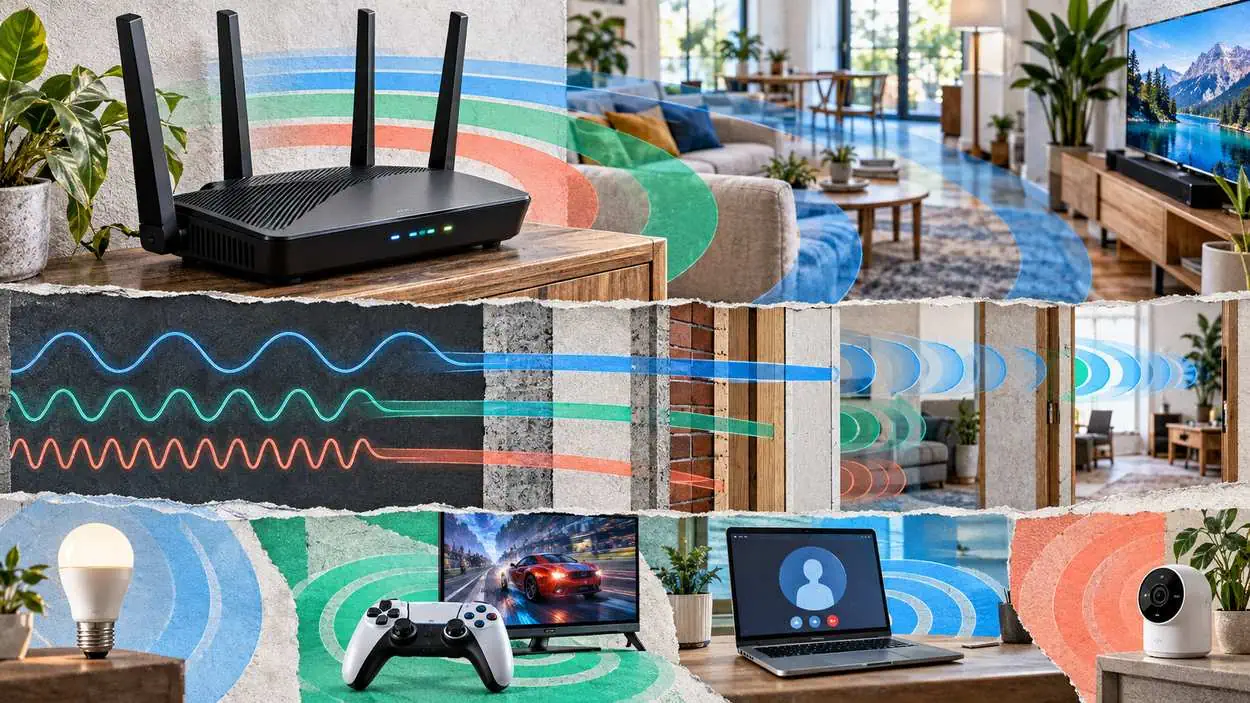
Google says 2.4 GHz signals travel farther, so they cover a larger area, and they can travel through solid objects more easily. Its Nest guidance tells owners to try to switch to a 2.4 GHz network if your Nest product is installed far away from your router. That makes 2.4 GHz the reach band in your home.
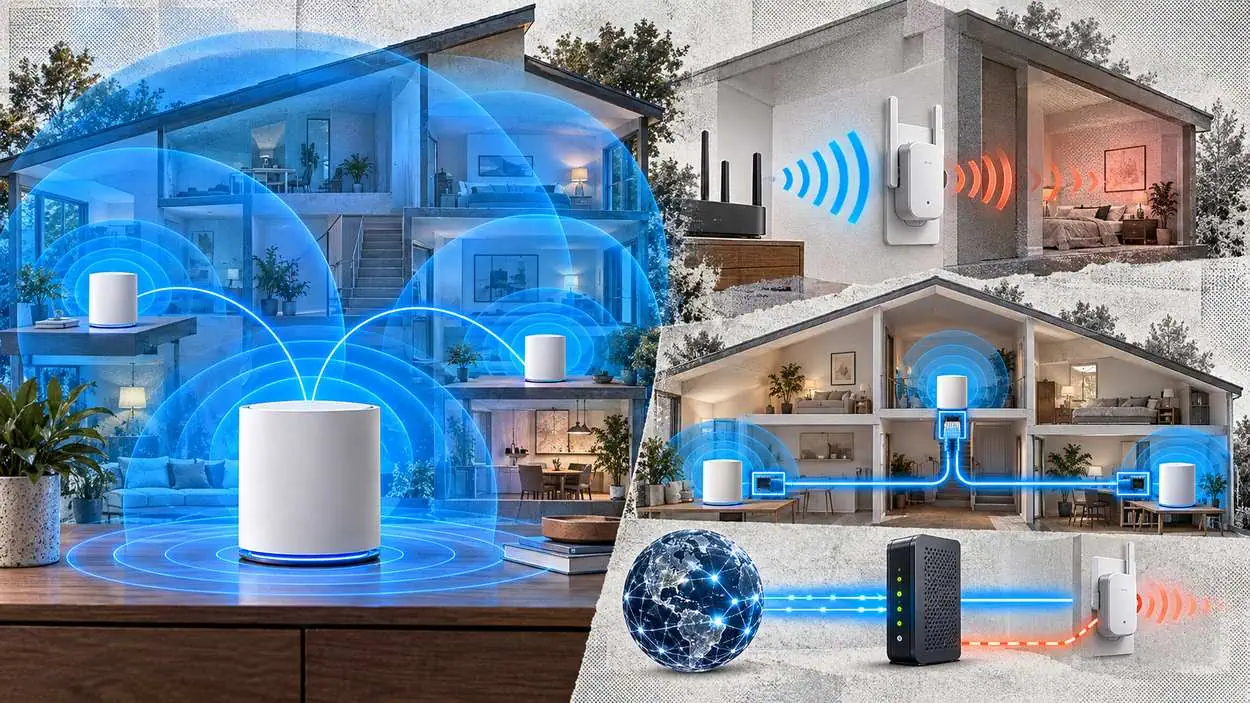
Intel tempers the gap. It says while it’s true that this lower frequency band will have broader range than higher frequencies, the range is often negligible, and that most users will have similar or as-good-as connectivity throughout their homes using a 5 GHz or 6 GHz band. Homes where neither band reaches a far room may need mesh Wi-Fi or a Wi-Fi extender rather than a band change.
Interference can push the other way. Google says to try to switch to a 5 GHz network if you’re getting a weak connection due to interference from 2.4 GHz household devices like cordless phones, baby monitors, microwaves, and wireless speakers.
Does 5GHz Wi-Fi go through walls?
Yes, but less easily than 2.4 GHz. Google says 2.4 GHz signals travel farther and pass solid objects more easily, and Intel says physical objects or walls reduce signal strength and cut real speeds. Intel adds that the range difference is often negligible for most homes.
Why isn’t my 5GHz Wi-Fi working, but my 2.4 GHz Wi-Fi is?
Distance is one reason. Google suggests 2.4 GHz if your Nest product is installed far away from your router, or if you have a weak connection to your 5 GHz network. Some devices also never see 5 GHz: Google lists Nest Connect among products that only work with 2.4 GHz. Some devices never get the choice.
Smart Home Devices and the 2.4 GHz Band
Google lists 1st and 2nd gen Nest Learning Thermostats, 1st and 2nd gen Nest Protects, and Nest Connect as 2.4 GHz-only, and says most Nest products work with 5 GHz networks, but there are exceptions.
- Owners of those 2.4 GHz models need to enable 2.4 GHz on their router to connect them.
- TP-Link’s FAQ for the Tapo P100, P105, P110, and P115 plugs says the Tapo smart plug is compatible with any wireless router that supports 2.4 GHz frequency.
Growth in smart home device adoption makes it worth checking a new device’s band support before setup.
| Maker | Product | Band support |
|---|---|---|
| 1st and 2nd gen Nest Learning Thermostat | 2.4 GHz only | |
| 1st and 2nd gen Nest Protect | 2.4 GHz only | |
| Nest Connect | 2.4 GHz only | |
| TP-Link | Tapo P100, P105, P110 and P115 smart plugs | 2.4 GHz |
| Most other Nest products | Work with 5 GHz networks |
Source: Google, TP-Link
Intel’s advice turns that limit into a plan: There is a viable use case for 2.4 GHz when connecting several Internet of Things (IoT) devices in the home, such as smart thermostats, smart doorbells, and internet protocol (IP) cameras, in order to reduce network contention on your 5 GHz and 6 GHz bands. Freeing 5 GHz for the devices that need it pays off most for games and calls.
Which Wi-Fi Band for Gaming, Streaming and Video Calls
Intel recommends using the 5 GHz and 6 GHz bands for gaming, home theater, and home office applications that depend on a lot of voice and video calls, and it calls 2.4 GHz the “best effort” network for Wi-Fi. For latency-sensitive work on your network, the 5 GHz and 6 GHz bands are the answer.
The Wi-Fi Alliance frames the split as capacity: Dual-band networks double capacity because devices can use the less crowded 5 GHz band for high-performance applications, and the 2.4 GHz band for basic needs such as web surfing and IoT applications. Players chasing the lag figures in online gaming data get the most from a console on 5 GHz near the router.
The takeaway: Intel puts gaming, home theater, and home office applications on 5 GHz and 6 GHz, and the Wi-Fi Alliance says dual-band networks double capacity when high-performance traffic leaves 2.4 GHz for basic needs. Moving one console off 2.4 GHz frees room for the Nest models that have nowhere else to go.
A third band now sits above both.
Where 6 GHz Wi-Fi 6E and Wi-Fi 7 Fit
The Wi-Fi Alliance says introduced in 2024, Wi-Fi 7 enhances performance across the 2.4 GHz, 5 GHz, and 6 GHz bands, and that 320 MHz channels available in the 6 GHz band provide twice the throughput of Wi-Fi 6. For most homes, the newer band is an addition rather than a replacement.
- Intel warns that you cannot use your Wi-Fi generation to determine which bands your device can connect to.
- Within the Wi-Fi 6 generation, Intel notes, only Wi-Fi 6E can access all three spectrums, including 2.4 GHz, 5 GHz, and 6 GHz.
- The good news, in Intel’s words, is that your older devices will still be able to connect to the legacy Wi-Fi bands of newer tri-band routers.
View the data
The timeline shows how recent the 6 GHz band is next to the Wi-Fi 4 introduced in 2009. The Wi-Fi Alliance lists 2026 chipset shipment figures, without saying whether they are actual or forecast, and its categories overlap: 1.4 billion Wi-Fi 7 chipset shipments in 2026, 2.2 billion Wi-Fi 6 chipset shipments in 2026 and 1.4 billion 6 GHz chipset shipments in 2026 (Wi-Fi 6E and tri-band Wi-Fi 7).
View the data
Security is the other difference. Cisco’s WPA3 guide says Wi-Fi Alliance mandated WPA3 for 6 GHz band and Wi-Fi 7, and the requirement list includes WPA3-Personal (SAE) with H2E for home/personal use.
Worth noting: Cisco states that WPA3 is mandatory for all Wi-Fi 6E devices operating in 6 GHz band and that WPA2 is not permitted in 6 GHz operation. Intel adds that older devices will still be able to connect to the legacy Wi-Fi bands, so WPA2-only gear stays on 2.4 GHz or 5 GHz.
Older devices and 6 GHz: A router set to WPA3 on every band can strand gear that only speaks WPA2. The NSA allows WPA2/3 instead on networks with such devices, which keeps them connected on the older bands while 6 GHz stays WPA3-only.
That security rule is worth applying to the older bands too.
Wi-Fi Security Settings for Each Band
The NSA advises owners to ensure the router is capable of Wi-Fi Protected Access 3 (WPA3), and to use a strong passphrase with a minimum length of twenty characters when configuring WPA3 or WPA2/3. It adds that when available, protected management frames should also be enabled for added security. Home settings carry different risks from the public Wi-Fi security risks you face on the road.
Apple’s guidance is to apply settings evenly, with all routers on your network using the same name for every band they support. Matching security across bands helps reduce the risk of a weak band becoming the easy way in, and the password habits data shows why a twenty-character passphrase is worth the effort.
The NSA also says to change the default service set identifier (SSID) to something unique and not hide the SSID, as this adds no additional security to the wireless network. Those settings sit alongside other router security settings worth changing on a new router. With security matched, the band choice comes down to the device and the room.
Which Wi-Fi Band to Use for Each Device and Room
Intel’s split works for most homes: For gaming, home theater, and home office applications that depend on a lot of voice and video calls, using the 5 GHz and 6 GHz bands is recommended, while 2.4 GHz handles IoT gear. Google’s 1st and 2nd gen Nest Learning Thermostats stay on 2.4 GHz regardless.
| Device or room | Band | Why |
|---|---|---|
| Gaming console or PC | 5 GHz or 6 GHz | Intel recommends them for gaming |
| TV or home theater | 5 GHz or 6 GHz | Intel recommends them for home theater |
| Laptop for video calls | 5 GHz or 6 GHz | Intel recommends them for home office calls |
| Smart thermostat, doorbell or IP camera | 2.4 GHz | Intel: reduces contention on 5 GHz and 6 GHz |
| 1st or 2nd gen Nest Learning Thermostat, Nest Protect, Nest Connect | 2.4 GHz | Google: only works with 2.4 GHz |
| Tapo P100, P105, P110 or P115 plug | 2.4 GHz | TP-Link: supports 2.4 GHz |
| Device far from the router | 2.4 GHz | Google: 2.4 GHz travels farther |
| Device hit by microwave or cordless phone interference | 5 GHz | Google: switch away from 2.4 GHz interference |
Source: Intel, Google, TP-Link
Best for gaming and calls: 5 GHz or 6 GHz near the router, where Intel lists up to 1 Gbps on 5 GHz and up to 2 Gbps on 6 GHz.
Smart home gear sits at the other end of the table, where reach and compatibility matter more than speed.
Best for smart plugs and thermostats: 2.4 GHz, since Tapo smart plugs support 2.4 GHz Wi-Fi and Intel uses the band to free up channels on 5 GHz.
Distance is the last deciding factor, and it favors the lower band.
Best for a far bedroom or garage: 2.4 GHz, because Google says 2.4 GHz signals travel farther, so they cover a larger area.
Should I choose 2.4 GHz or 5GHz?
Choose 5 GHz for speed near the router and 2.4 GHz for reach and smart home gear. Intel rates 5 GHz at up to 1 Gbps against 2.4 GHz’s lower ceiling, while Google says 2.4 GHz signals travel farther. With one network name, the router can make that choice per device.
How do I know if my Wi-Fi is 2.4 or 5 GHz?
ASUS says that with one shared name across your 2.4 GHz and 5 GHz bands, devices (such as smartphones) will automatically connect to the most suitable WiFi band, so the band can change. With Smart Connect off, users manually select the WiFi band for their devices (such as 2.4GHz or 5GHz), and each network name points to one band.
Can I use both 2.4 and 5GHz at the same time?
Yes, and the Wi-Fi Alliance says most Wi-Fi 5 products are dual-band, operating in both the 2.4 GHz and 5 GHz bands, and that dual-band networks double capacity. Wi-Fi 7 goes further across all 3 bands, since multi-link operation supports more efficient load balancing of traffic among links.
Conclusion
The 5GHz vs 2.4GHz decision starts with Intel’s typical ceilings, up to 100 Mbps on 2.4 GHz and up to 1 Gbps on 5 GHz, and ends with the devices in the house. Gaming, streaming and calls belong on 5 GHz or 6 GHz, while thermostats, plugs and far rooms belong on 2.4 GHz. One band-steered network name, as Apple recommends, plus a separate IoT network, as the NSA recommends, covers both speed and isolation.
The 6 GHz band adds up to seven even larger 160 MHz channels for newer devices, but only on WPA3, so WPA2-only gear stays on the two original bands. Keep 2.4 GHz switched on for anything that cannot join 5 GHz.